

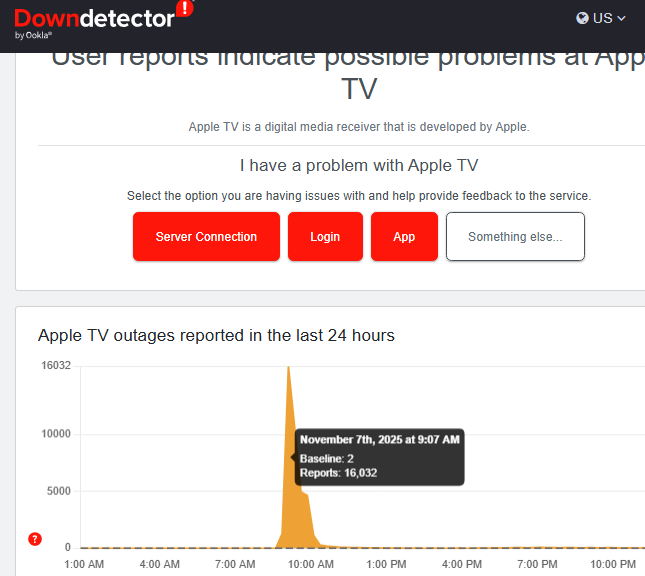
Apple’s streaming service Apple TV experienced a major outage on Thursday, leaving nearly 15,000 users in the US unable to stream content, according to tracking website Downdetector.com. Most affected users reported server errors, including the frustrating message:
“Problem loading this content.”
Although Apple has not released an official statement yet, past outages caused by server overload, network issues, or software bugs suggest that this was a widespread service interruption.
✅ Why the Error Happens
The “problem loading this content” warning usually appears when your device can’t properly connect to Apple’s servers. This can lead to:
- Frozen playback
- Continuous buffering
- Content refusing to load
- Errors across smart TVs, iPhones, iPads, and Apple TV devices
✅ How to Fix the Apple TV Error — Step-by-Step Guide
1. Check Apple TV Outage Status
Before trying anything, confirm whether the issue is widespread:
- Visit Downdetector
- Check Apple’s System Status Page: apple.com/support/systemstatus
If Apple TV is down for many users, wait 30–60 minutes. Outages typically resolve quickly.
2. Restart Your TV or Device
A simple restart fixes most temporary streaming glitches.
On Apple TV:
Go to Settings > General > Restart
Using the Remote:
Hold TV + Volume Down for 5 seconds until the LED light flashes.
On iPhone/iPad:
Restart the device normally.
3. Turn Off Subtitles and Audio Enhancements
Sometimes captions or audio settings cause streaming conflicts.
Go to:
Settings > Audio & Video > Subtitles > Off
Some users report that subtitles can increase bandwidth usage and trigger errors.
4. Update the App and Software
Outdated software often leads to playback issues.
- Update tvOS: Settings > System > Software Updates
- Update the TV app on iOS, Android TVs, Roku, Fire TV, etc.
Newer versions include bug fixes for common streaming errors.
5. Fix Your Network and Clear Cache
Poor internet or corrupt cached data can block Apple TV content.
✅ Switch to another Wi-Fi network
✅ Try using Ethernet for stable streaming
✅ Ensure at least 25 Mbps internet speed
✅ Clear app cache:
On iPhone/iPad:
Settings > General > iPhone Storage > Apple TV > Offload App
On Android TV:
Apps > Apple TV > Storage > Clear Cache
6. Try Another Device or Different Content
If the app works on one device but not another, the issue is device-specific.
- Try streaming on an iPhone, iPad, or browser
- Try another movie or show
- Delete and reinstall the Apple TV app
7. Contact Apple Support
If none of the fixes work:
Go to support.apple.com and submit a ticket with:
- Error message
- Device model
- Software version
Apple typically replies within 24 hours.